DROPWEBS
Media Manager

Straight answers about what Google will and will not share.

Media Manager shows the media information the official Google Business Profile APIs expose, and states plainly where they expose nothing. No invented photo counts, no fabricated engagement scores.

The problem

Photo metrics are where review tools start making things up.

A lot of dashboards will happily show you a photo engagement score, a media health rating, or a count of profile views driven by images. The Business Profile APIs used for reviews do not return that data. Those numbers are estimates dressed as measurements, and clients repeat them as fact.

A confident number with no source is worse than an honest blank.

Agencies end up reporting invented metrics to clients in good faith.

Fake scores crowd out the advice that would actually help.

You cannot tell which figures in a dashboard are real.

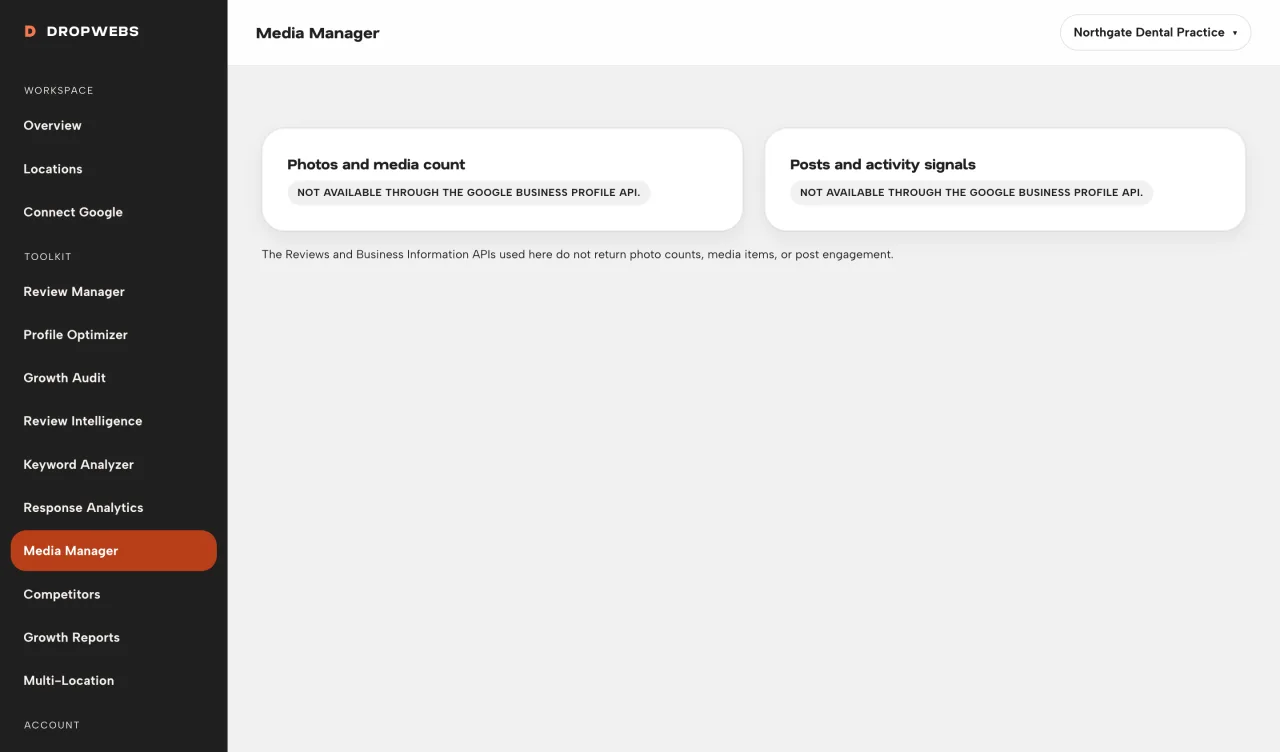
What Dropwebs does: Media Manager explains which photo and post signals are available through the official APIs Dropwebs uses, and which are not.

Dropwebs Media Manager labelling photo and post metrics as not available through the Google Business Profile API

What is available

Everything Google returns, and nothing else.

Where the official APIs expose media information for your location, Dropwebs shows it. Where they do not, you get a clearly labelled statement that the data is not available through the Google Business Profile API, rather than a plausible-looking number.
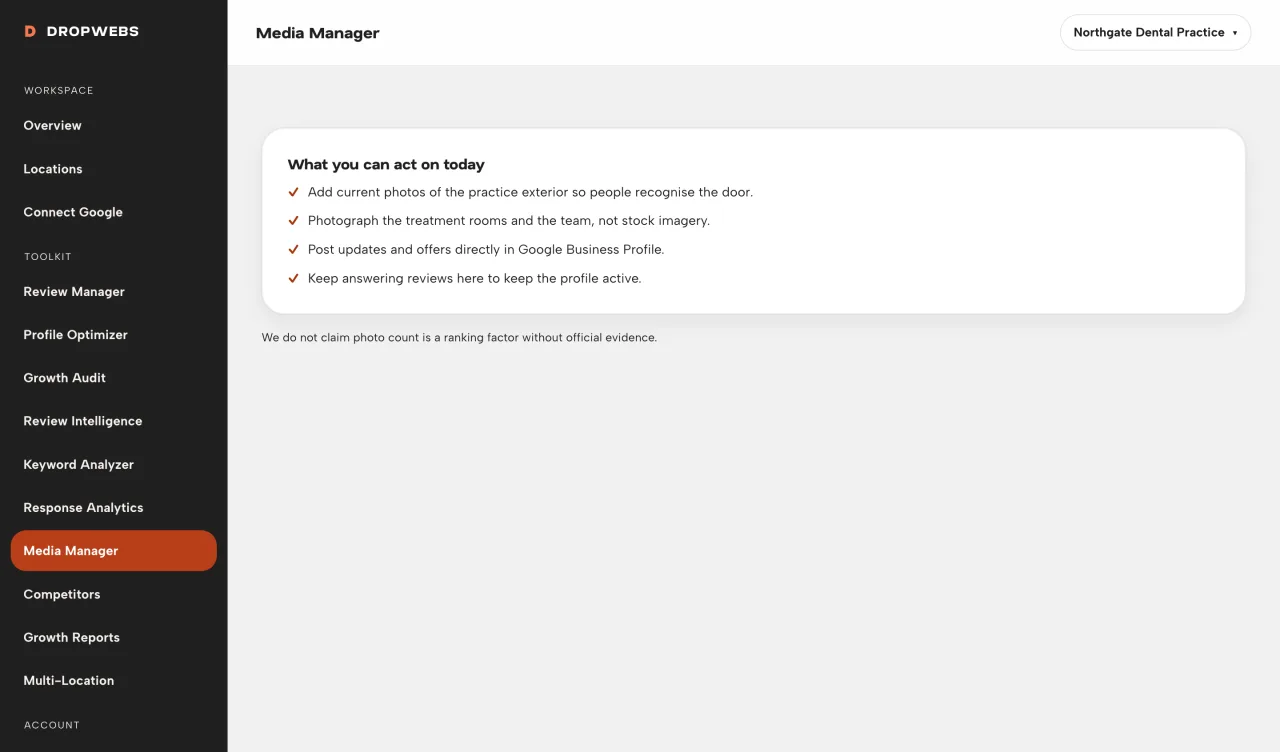
Recommended media actions in Dropwebs Media Manager

What to do instead

Practical actions that do not need a fake metric.

You do not need an invented engagement score to know that current photos of your actual premises, team and products help customers choose you. Media Manager gives you the short list of things worth doing in Google Business Profile, without pretending to measure them.

How it works

From connection to result.

01

Step 1

Connect Google and select a location.

02

Step 2

View what is available vs unavailable.

03

Step 3

Manage photos and posts in Google when the API does not support an action.

04

Step 4

Keep reviews current with Review Manager.

What it gives back

Confidence that every number you repeat is real.

No accidental fiction

You will never quote a metric Dropwebs invented.

Clear boundaries

Know exactly where the official API stops.

Still useful

Concrete media actions, minus the fake scoring.

Future-proof

If Google exposes these signals, real numbers appear here.

How to use it

Your first run, step by step.

01

Step 1

Read the available vs unavailable cards.

02

Step 2

Add real storefront and product photos in Google Business Profile.

03

Step 3

Publish posts in Google when you want offers or updates.

04

Step 4

Use Profile Optimizer for other profile gaps.

Limitations

What this tool cannot do.

The Business Profile APIs used by Dropwebs do not return photo counts, media items, or post engagement metrics.

Adding and removing photos is done in Google Business Profile directly.

Dropwebs will not display a media metric it cannot source from Google.

Questions

Straight answers about media manager.

What it does, what it will not do, and where the data comes from.

Can Dropwebs upload photos for me?

Only if Google exposes that operation through the APIs we integrate. Today many media actions remain Google-side.

Will you invent photo scores?

Never.

Why does this tool show less than competitors?

Because the others are showing you numbers the API does not return. We would rather hand you a short honest page than a full dashboard of estimates you might repeat to a client as fact.

Will this change if Google opens the API?

Yes. If Google exposes media metrics through the official Business Profile APIs, Dropwebs will surface the real values here. Until then the page states the limitation.

Get started

Try Media Manager on your own profile.

Free plan, no card. Connect Google and this tool has real data to work with in about a minute.

How to use it

Operator guide for Media Manager.

Workspace steps and real screens. This is a how-to, not a second overview of the tool.

Open the guide