 DROPWEBS
 DROPWEBS
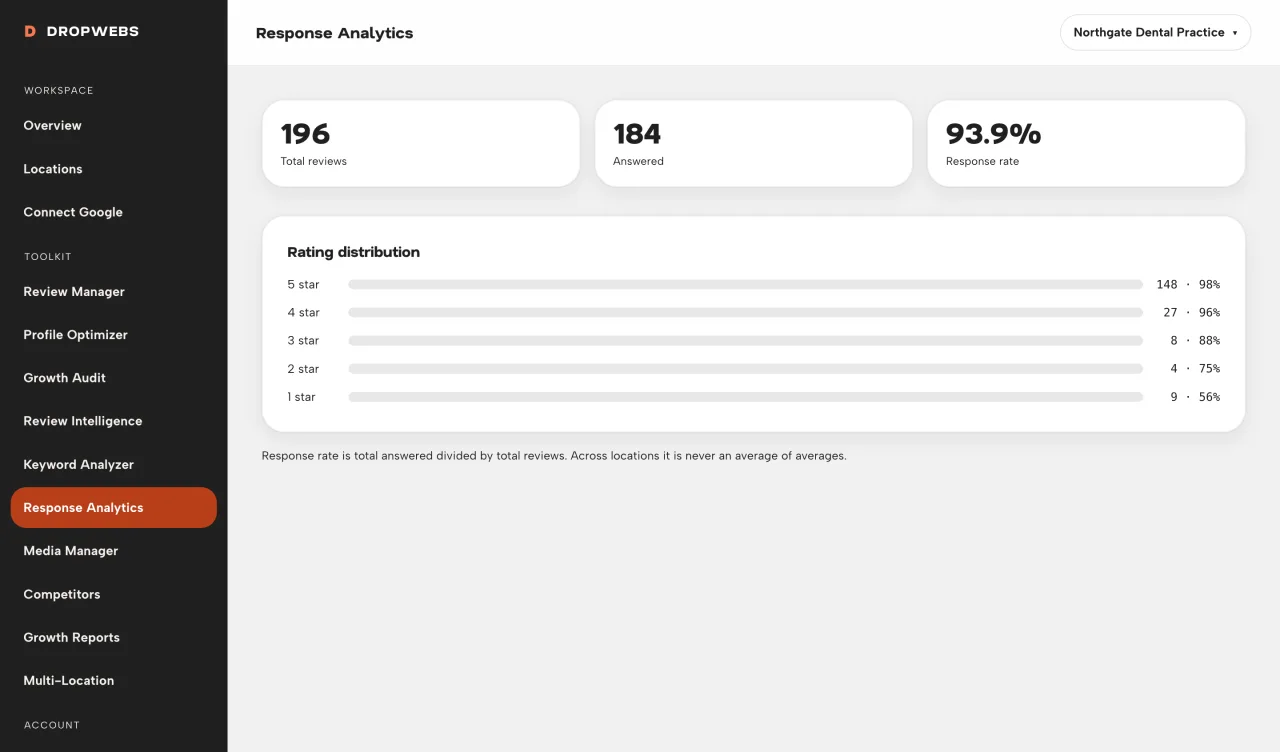
Step 01
Open Response Analytics
Response rate uses has_reply against the stored review set for that location.
Open Response Analytics after a sync. Rate is answered/total from stored reviews. Average response time only appears when Google sent both timestamps.
Step 01
Response rate uses has_reply against the stored review set for that location.
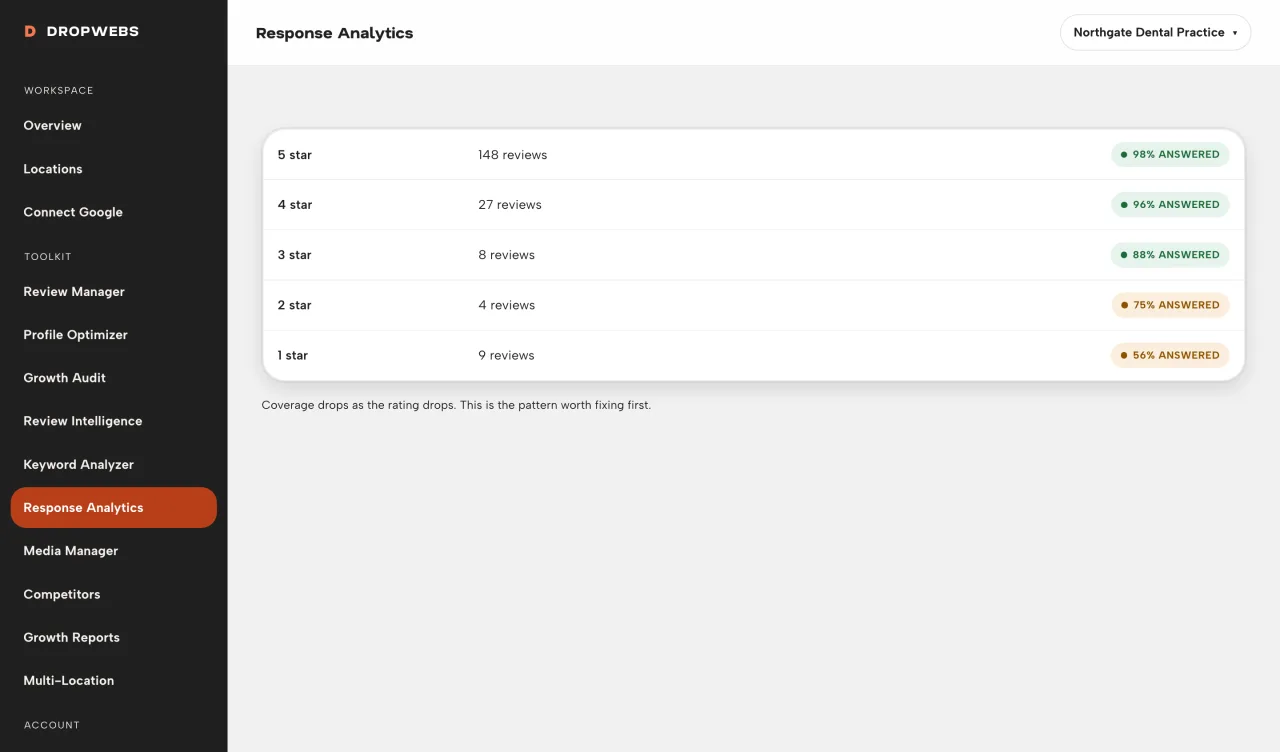
Step 02
This is a count of stored star ratings, not a Google Insights chart.
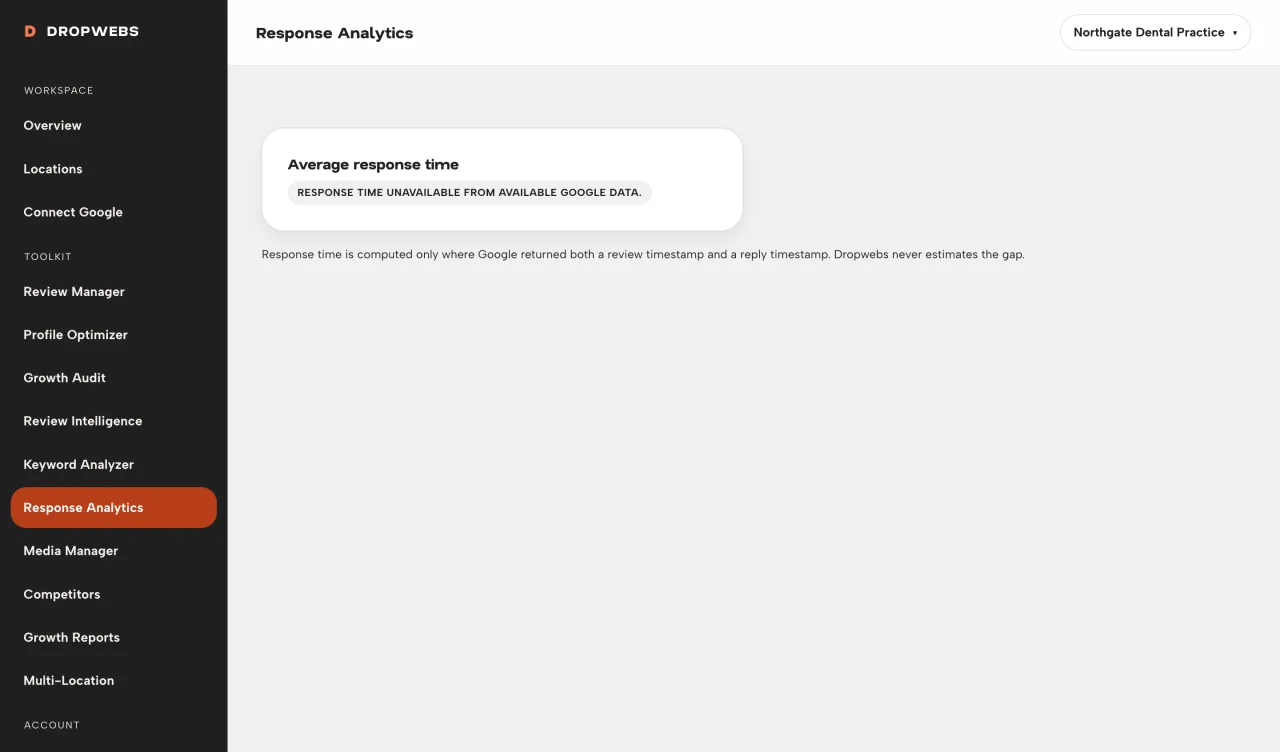
Step 03
If reply_time is missing, the UI says unavailable. That is expected, not a bug.
Step 04
Unanswered reviews are the only lever this number has.